
Your personal profile page
Your personal profile is your home on Auras. Use it to share who you are, find your people, and keep your posts and connections in one calm, clear place.
Create a personal profile
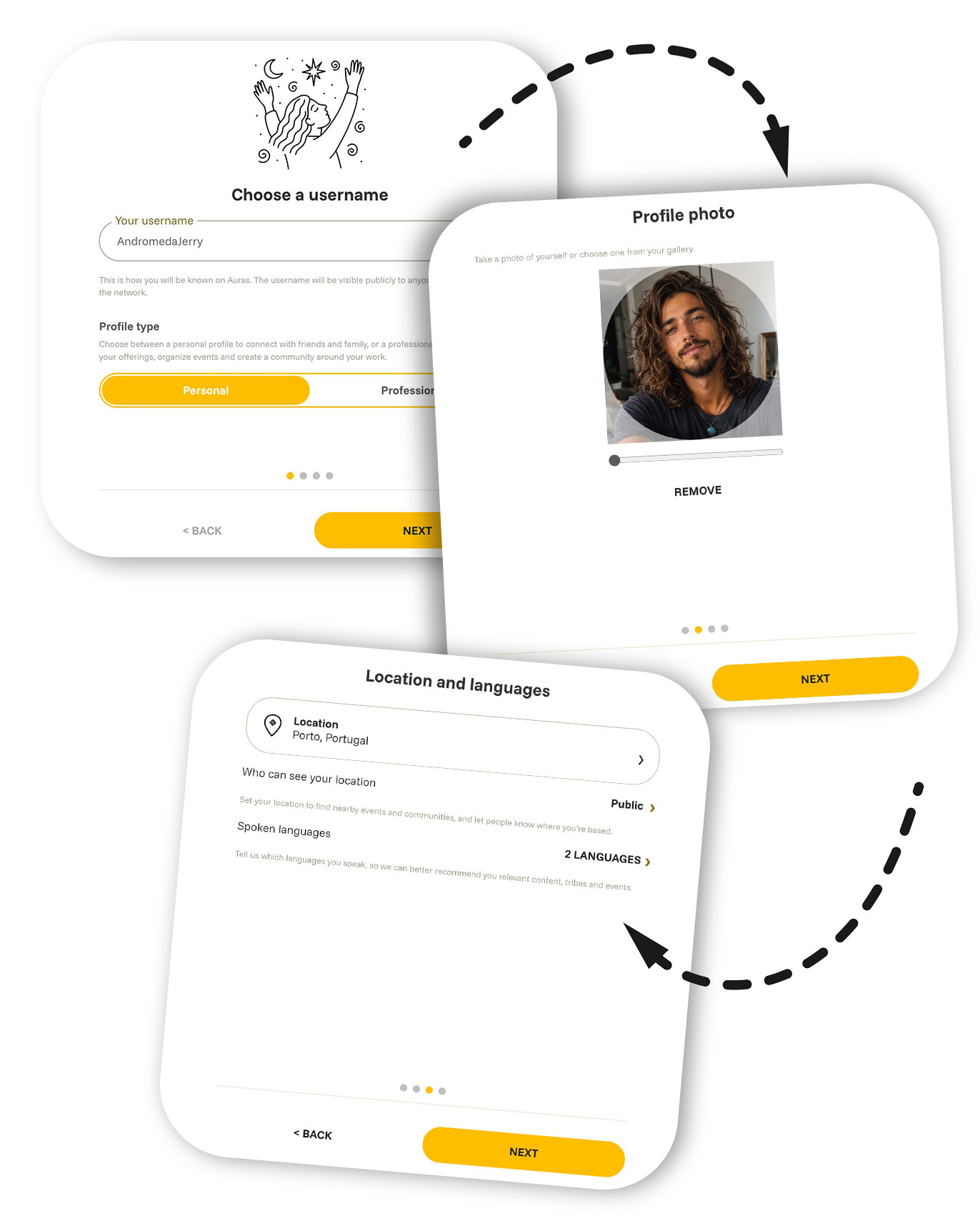
When you create a profile, choose Personal. You can also open the profile switcher later and choose Add a new profile.
- Choose a unique username. It becomes your public @username and profile link.
- Add a profile photo. You can position and crop it before saving.
- Add your location and choose who may see it: everyone, friends, close friends, or only you.
- Select the languages you speak and topics you care about. Auras uses these to improve recommendations.
Good to know: Your username is public inside and outside Auras. Your location has its own visibility setting.
Understand your profile page
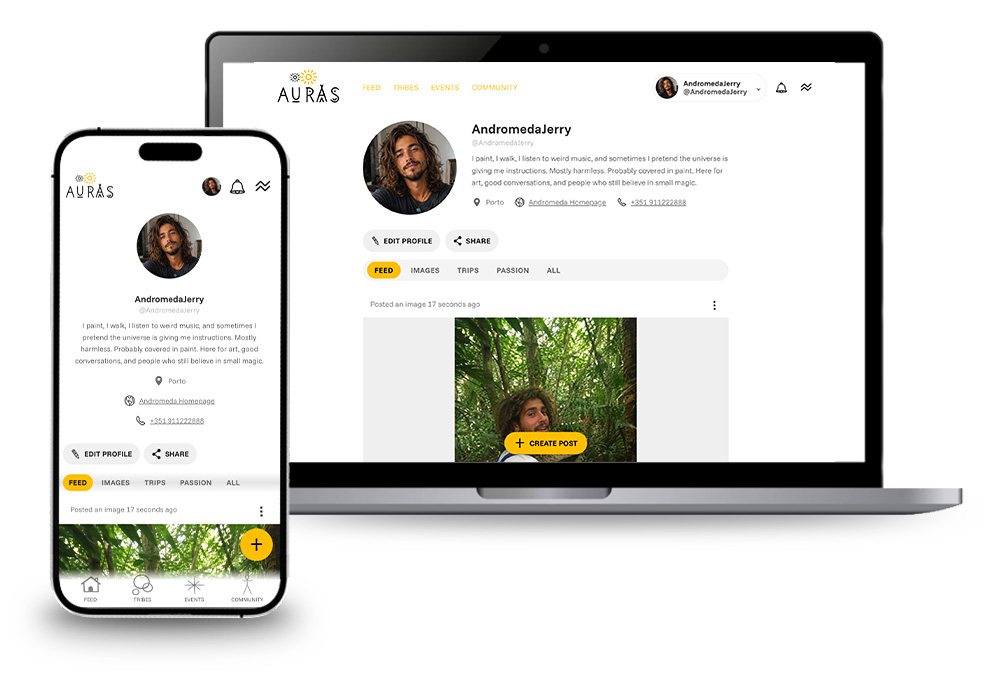
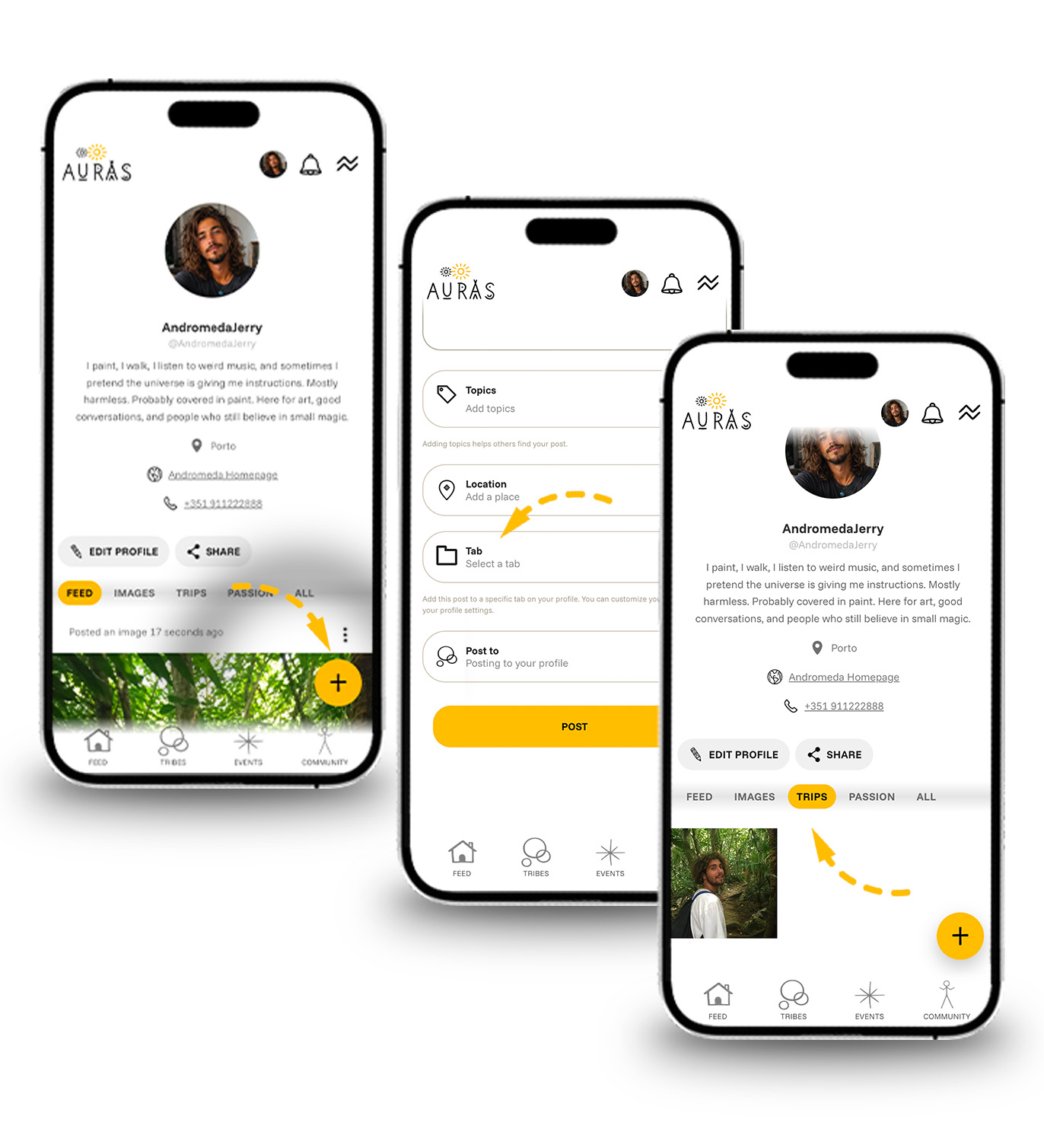
Your profile header can show your photo, display name, @username, bio, permitted location, and links. Beneath it, your profile actions and content tabs help people connect with you and explore what you share.
When viewing your own profile, use Edit profile to update it or Share to send your public profile link. Use the create button to publish an image or carousel, video, audio post, text post, or short thought.
Edit the details people see
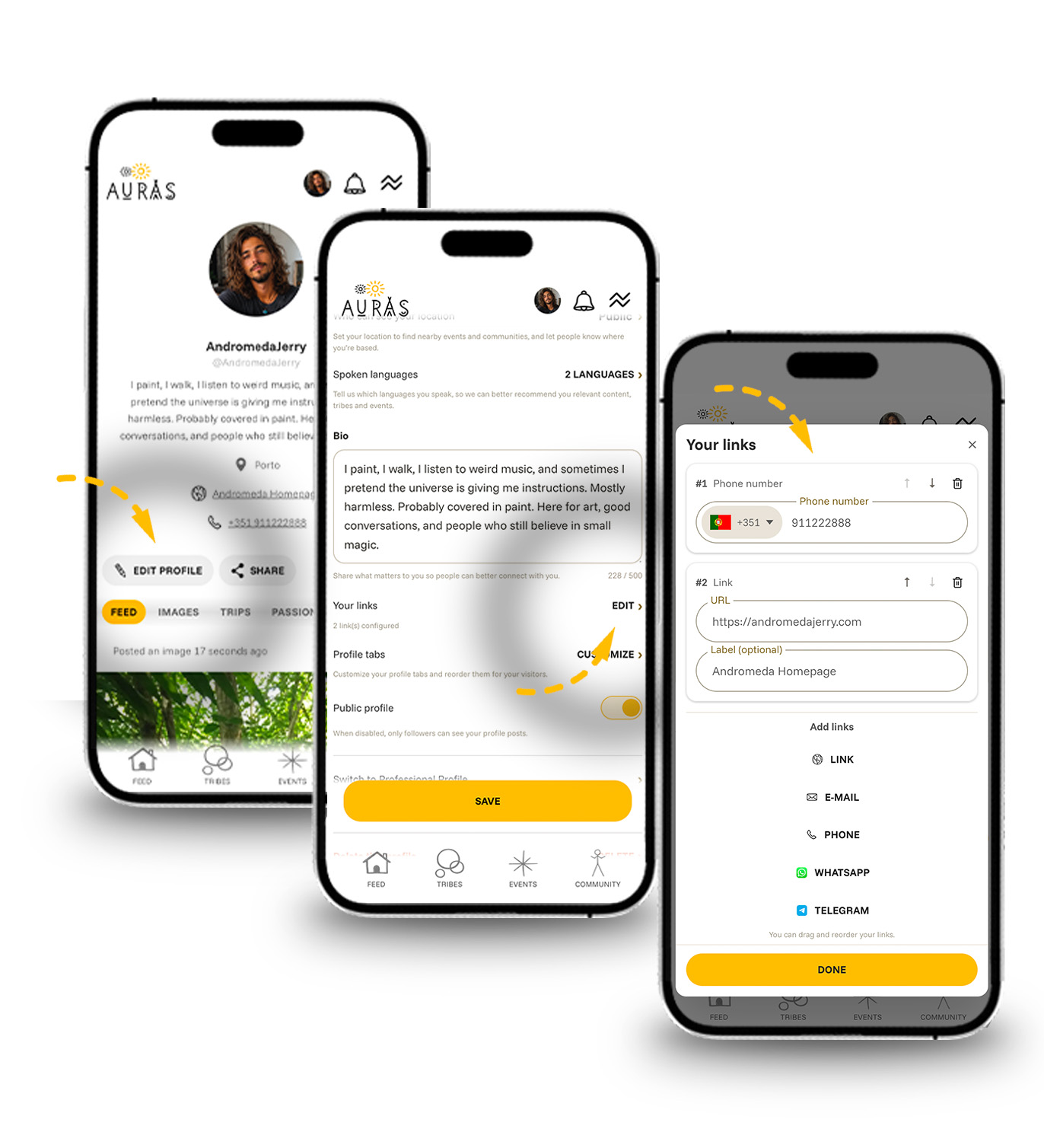
Open your profile and choose Edit profile. You can change:
- Profile photo: choose, crop, replace, or remove it.
- Username: your unique public handle and profile address.
- Display name: the name shown most prominently on your page.
- Location: the place connected to your profile and its separate visibility level.
- Spoken languages: used for discovery and recommendations.
- Bio: a short introduction of up to 500 characters.
- Public profile: when switched off, only accepted followers can see your profile posts.
Your basic profile identity may still be visible when your posts are limited. Location privacy is controlled separately.
Add links and contact options
In Your links, add a website, email address, phone number, WhatsApp number, or Telegram link. Drag links to reorder them, or use the up and down controls on touch devices.
Website links can have a custom label. Auras also recognizes some destinations and shows a matching icon for Linktree, Spotify, YouTube, and shop links. Other websites use the standard web icon; email, phone, WhatsApp, and Telegram use their own icons.
Tip: Use short labels such as “My portfolio”, “Book a call”, or “Listen on Spotify”. The label is shown instead of the full URL.
Organize posts with tabs
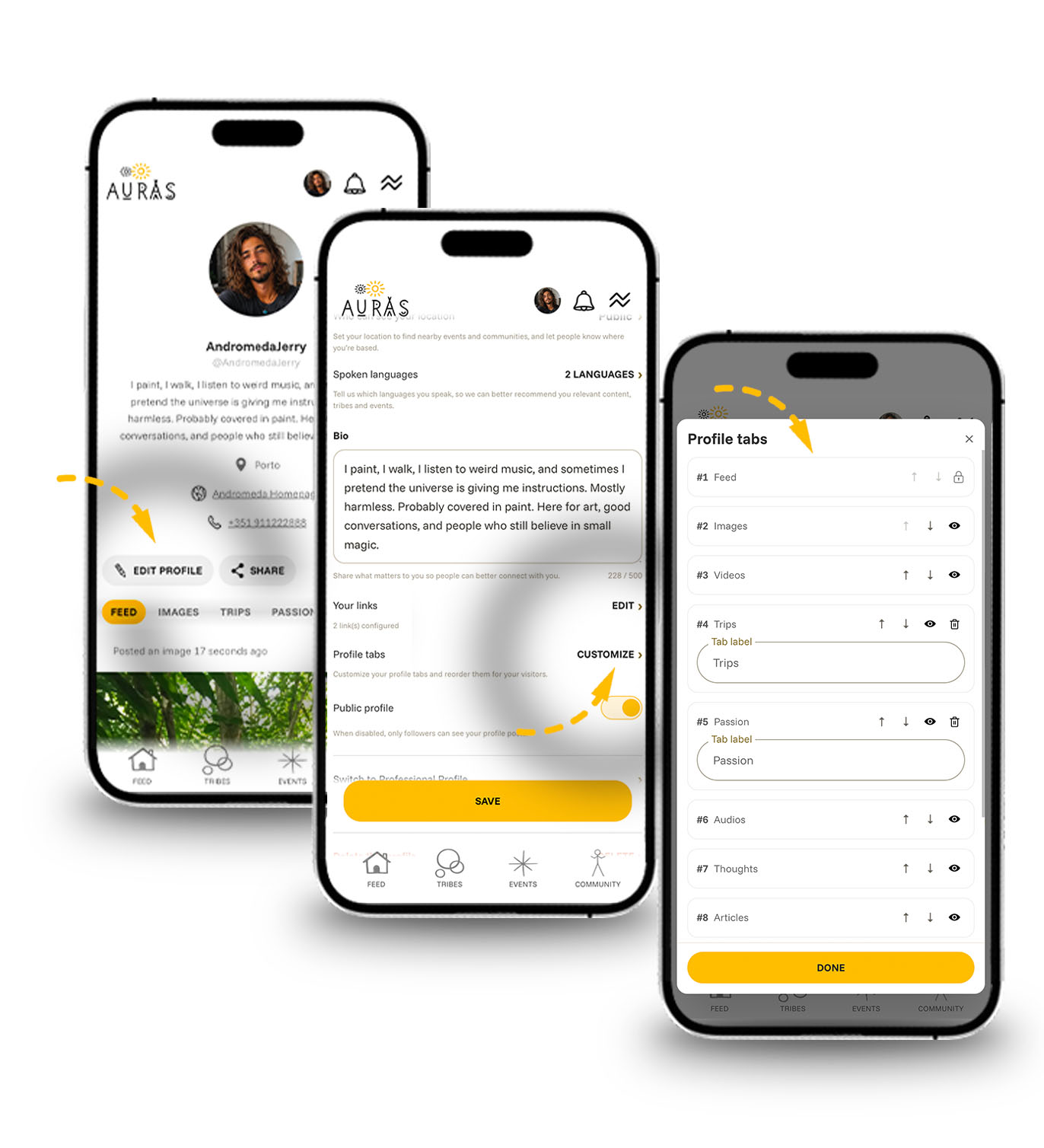
Profile tabs help visitors find different kinds of content. Open Profile tabs from Edit profile to rename custom tabs, add new ones, hide or show optional tabs, and change their order.
- Feed always stays first and visible.
- All always stays last and visible.
- Other system tabs, such as Images, Videos, Audios, Thoughts, Articles, or Events, may be shown between them.
- Custom tabs can be renamed, reordered, hidden, or deleted.
When you create or edit a post, choose a profile tab to place it there. A tab organizes content; it does not change who can see the post.
Follow people and use personal tribes
Following brings a person’s public updates into your network. If their profile posts are private, they need to accept your follow request first.
Use Add to my tribes on another person’s profile to invite them into your personal contact circles. These can include Friends, Close friends, and Work contacts. The other person may need to accept before the connection becomes mutual. Pending follow requests and tribe invitations appear directly on the relevant profile with accept, decline, or cancel controls.
Your location visibility can use these relationships. For example, you can share your location with friends or close friends without making it public.
Use more than one profile
You can keep separate personal and professional identities under one Auras account. Open the profile switcher in the header to view another profile, switch the active profile, or add a new one. Posts, tribes, events, and profile settings belong to the profile that is active when you create or manage them.
Switch to a professional profile
A personal profile can be converted from Edit profile by choosing Switch to Professional Profile. Professional profiles are designed for offerings, events, and public communities.
Before you switch: You cannot switch it back yourself. Contact Auras support if you need help reversing the change.
Delete a profile or account
If you have another profile, Edit profile lets you delete the active one after password confirmation. This removes its posts, comments, tribes, and events and cannot be undone. Deleting your Auras account removes every profile and all content connected to the account.