
Your professional profile page
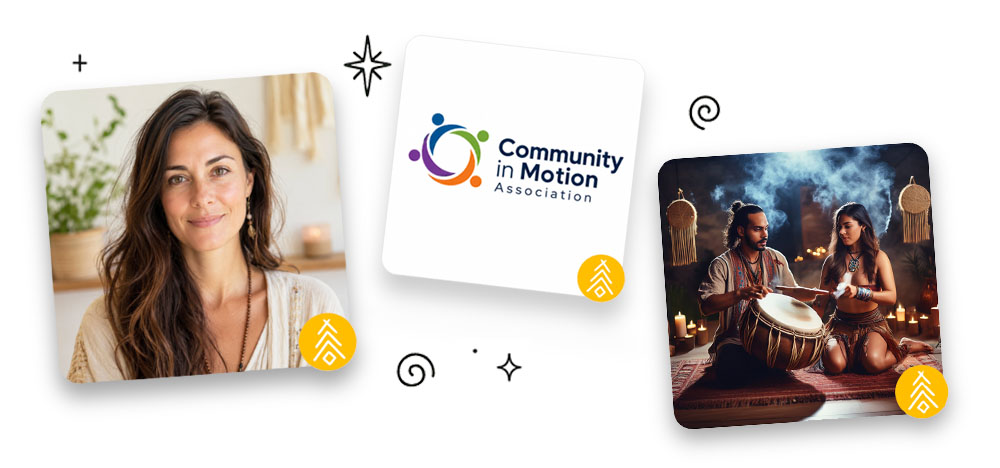
Your professional profile brings your work, offerings, events, content, and communities together. Keep it clear and human so people can quickly understand what you do and how to connect. Its square avatar and badge clearly identify you as a professional wherever you appear, helping you build trust and visibility. Professional profiles also give you more options, such as linking events to tribes, listing public tribes on your profile page, and creating ticketed events.
Create a professional profile
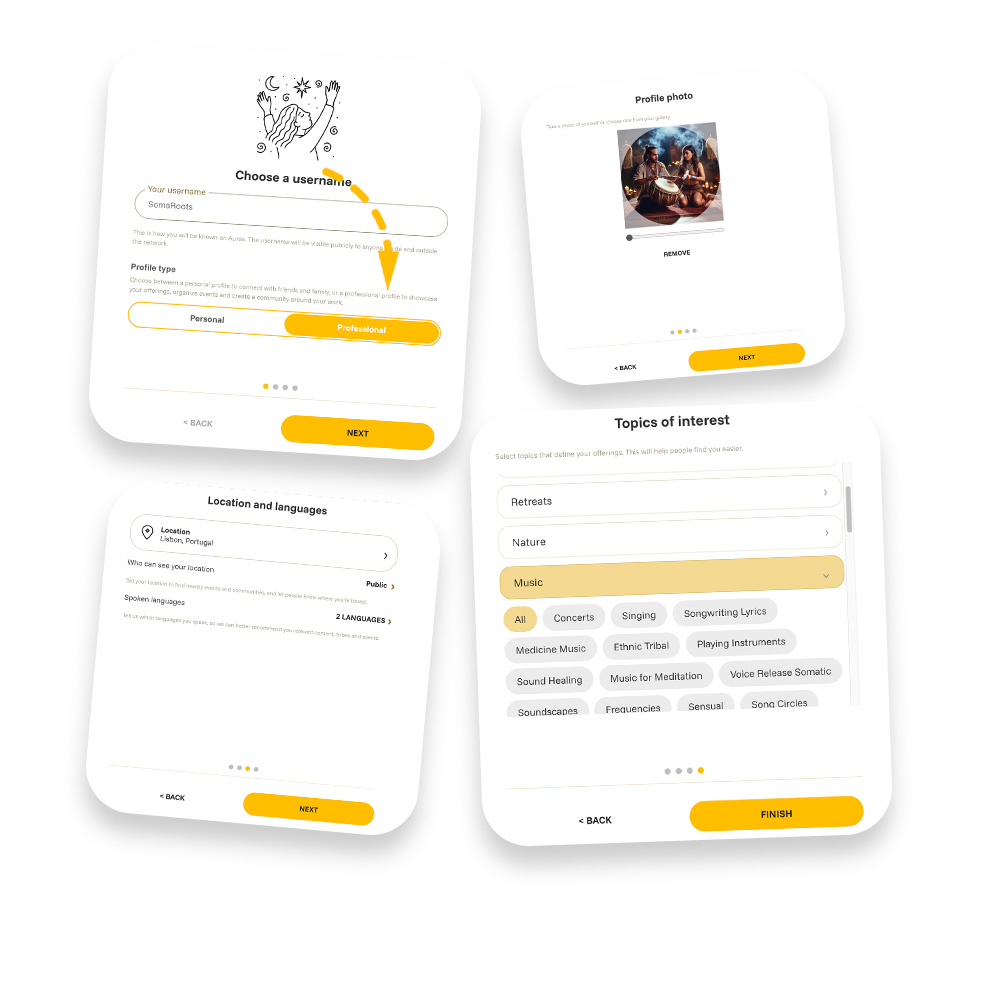
Choose Professional while creating a profile. You can also add one later from the profile switcher, or convert an existing personal profile from Edit profile.
- Choose a memorable username. It becomes your public @username and shareable profile address.
- Add a recognizable portrait, project mark, or business image and crop it for the square frame.
- Add your base location and choose who may see it.
- Add spoken languages if they are relevant, and choose topics carefully. Topics help people find professionals whose work and offerings match what they need.
Switch to a professional profile
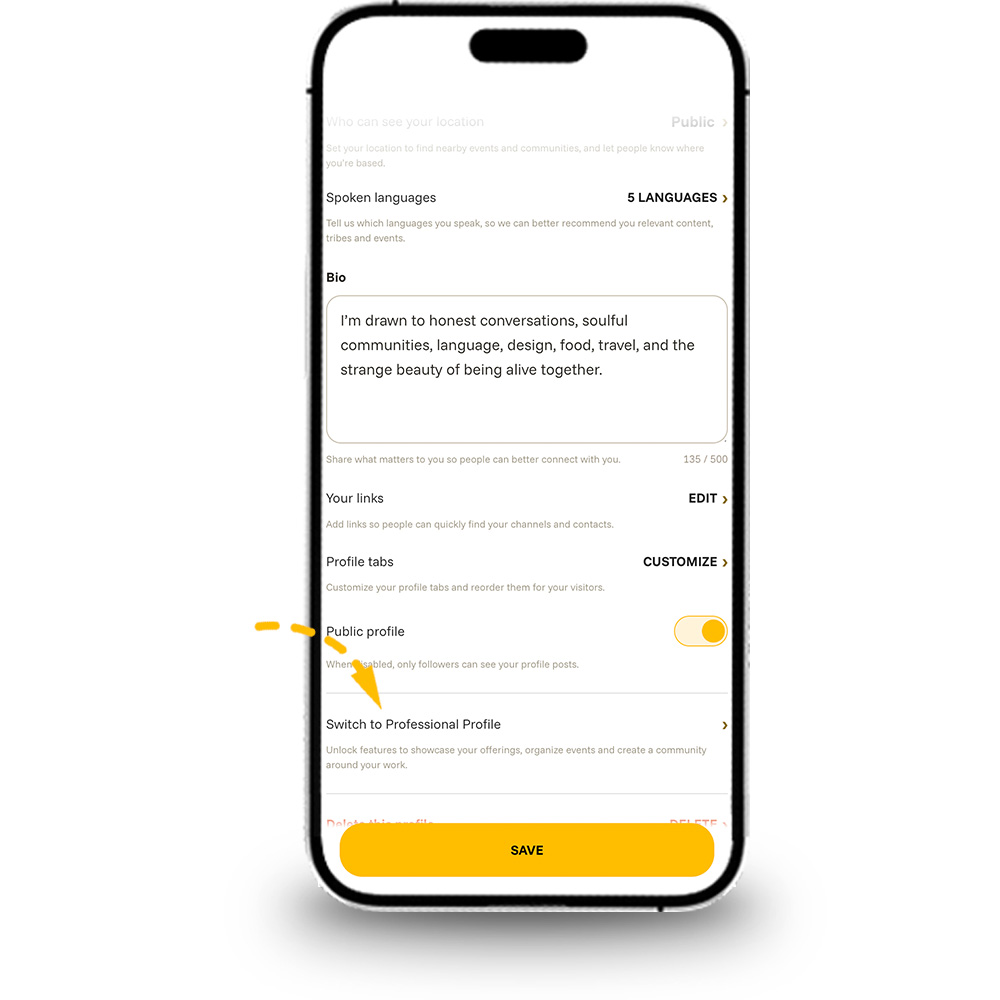
If you created your profile as Personal, you can switch whenever you are ready to present your work more clearly, build trust, and use professional tools. Open your Profile, choose Edit profile, and tap Switch to Professional Profile.
Build a clear profile header
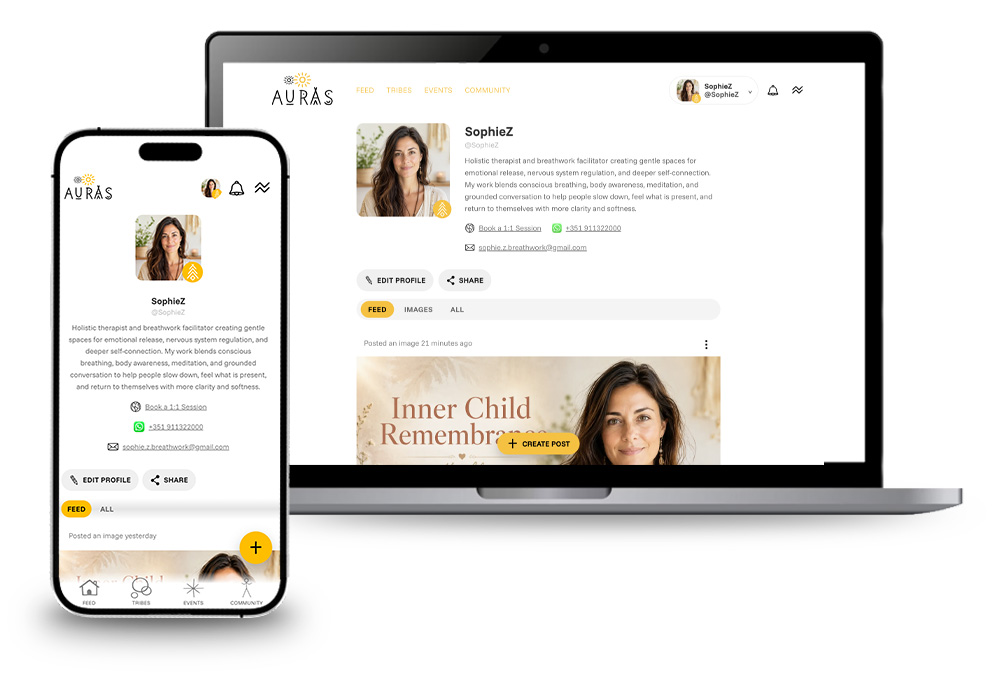
Your header can show your image, display name, @username, bio, permitted location, contact links, and the public tribes you own. Use your display name for the name people know, and use the bio to say who you help, what you offer, and where or how you work.
When viewing your own page, choose Edit profile to update it or Share to send its public link.
Edit your professional details
Open your profile and choose Edit profile. You can update:
- Profile image: choose, crop, replace, or remove it.
- Username and display name: your public handle and primary name.
- Location and visibility: share it publicly, with friends, with close friends, or keep it hidden.
- Topics: help people discover your profile when they are looking for professionals like you.
- Bio: a concise introduction of up to 500 characters.
- Public profile: when switched off, only accepted followers can see your posts.
Topics are managed separately through Topics of interest in the app menu. For a professional profile, choose topics that accurately describe your services, creative practice, venue, project, or field.
Turn links into clear next steps
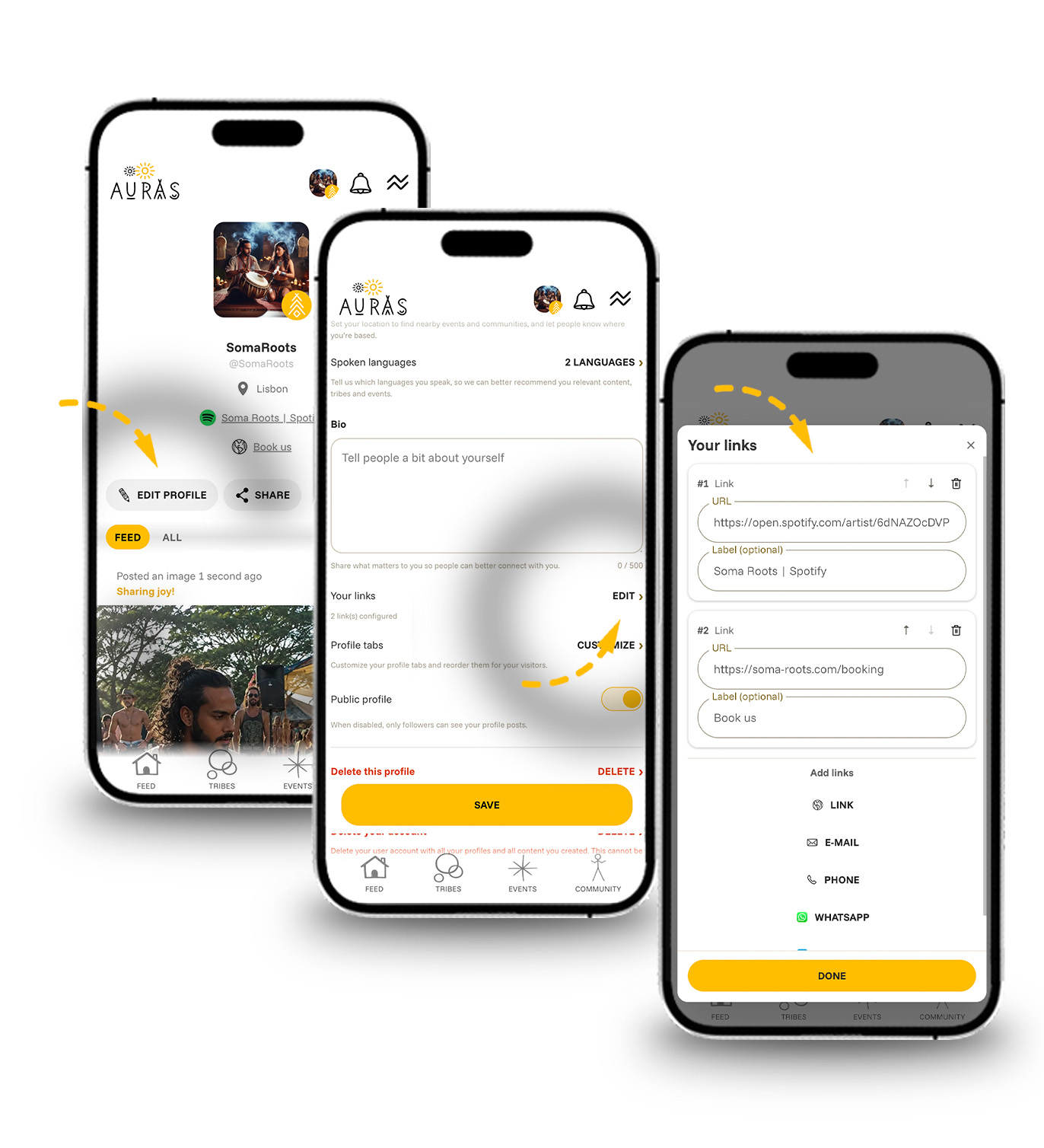
Use Your links for the actions you want visitors to take. You can add websites, email, phone, WhatsApp, and Telegram, then reorder them.
Website links support a custom label. Auras automatically uses recognizable icons for Linktree, Spotify, YouTube, and links that look like a shop. Other websites use the standard web icon.
- Use “Book a session” for your booking page.
- Use “View my work” for a portfolio.
- Use “Tickets and dates” for an external schedule.
- Keep the most important action first.
Show your public tribes
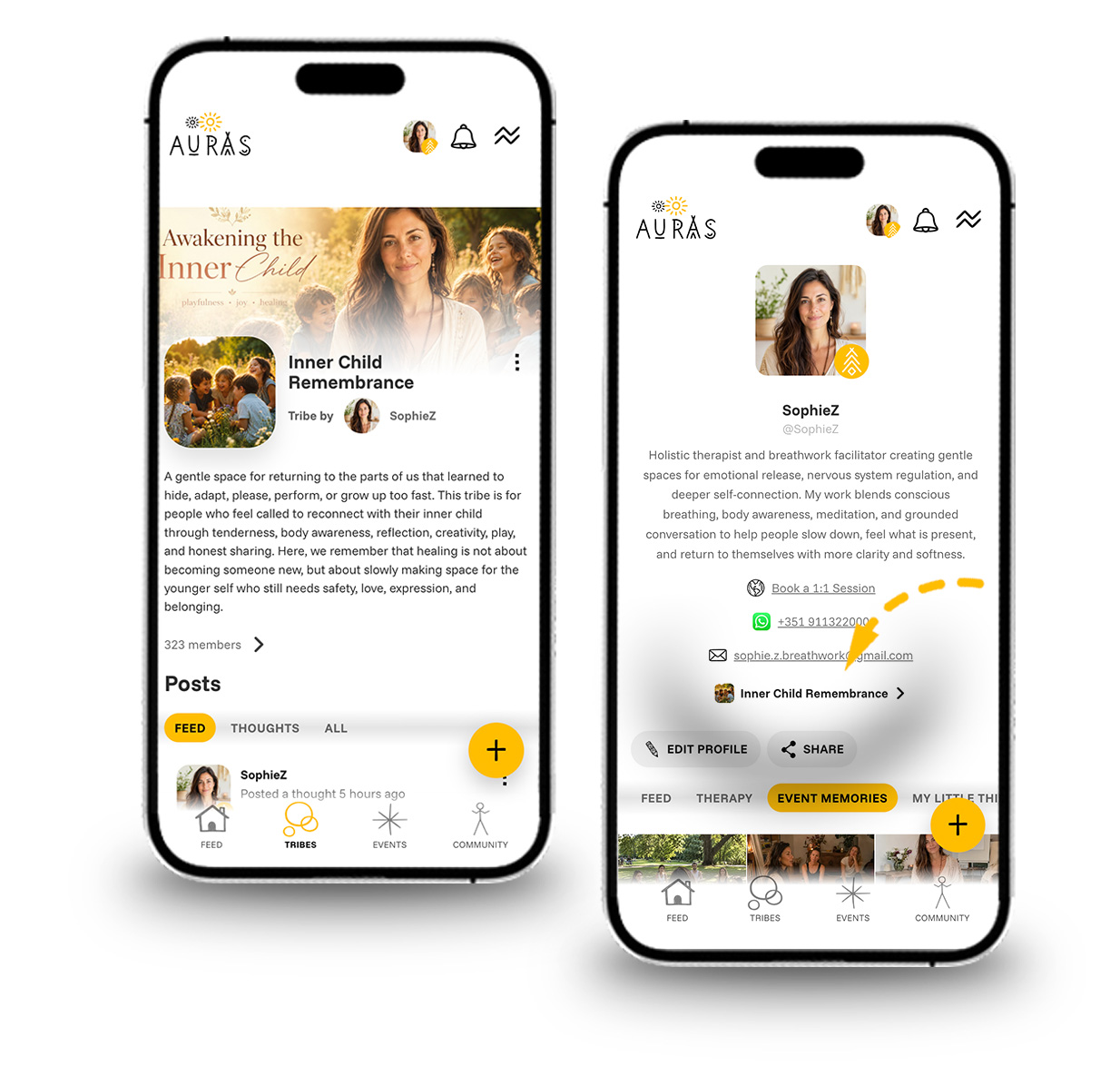
A professional profile automatically shows the public tribes you own. This gives visitors a direct path into the communities around your work.
- If you own one public tribe, it appears as a direct profile link.
- If you own several, the profile first shows a compact count with up to three tribe avatars.
- Visitors can open the count to see the full list and enter each tribe.
- Private tribes are not included in this public list.
Keep each tribe’s name, avatar, description, location, topics, rules, and visibility up to date from the tribe’s own edit page.
Organize your work with profile tabs
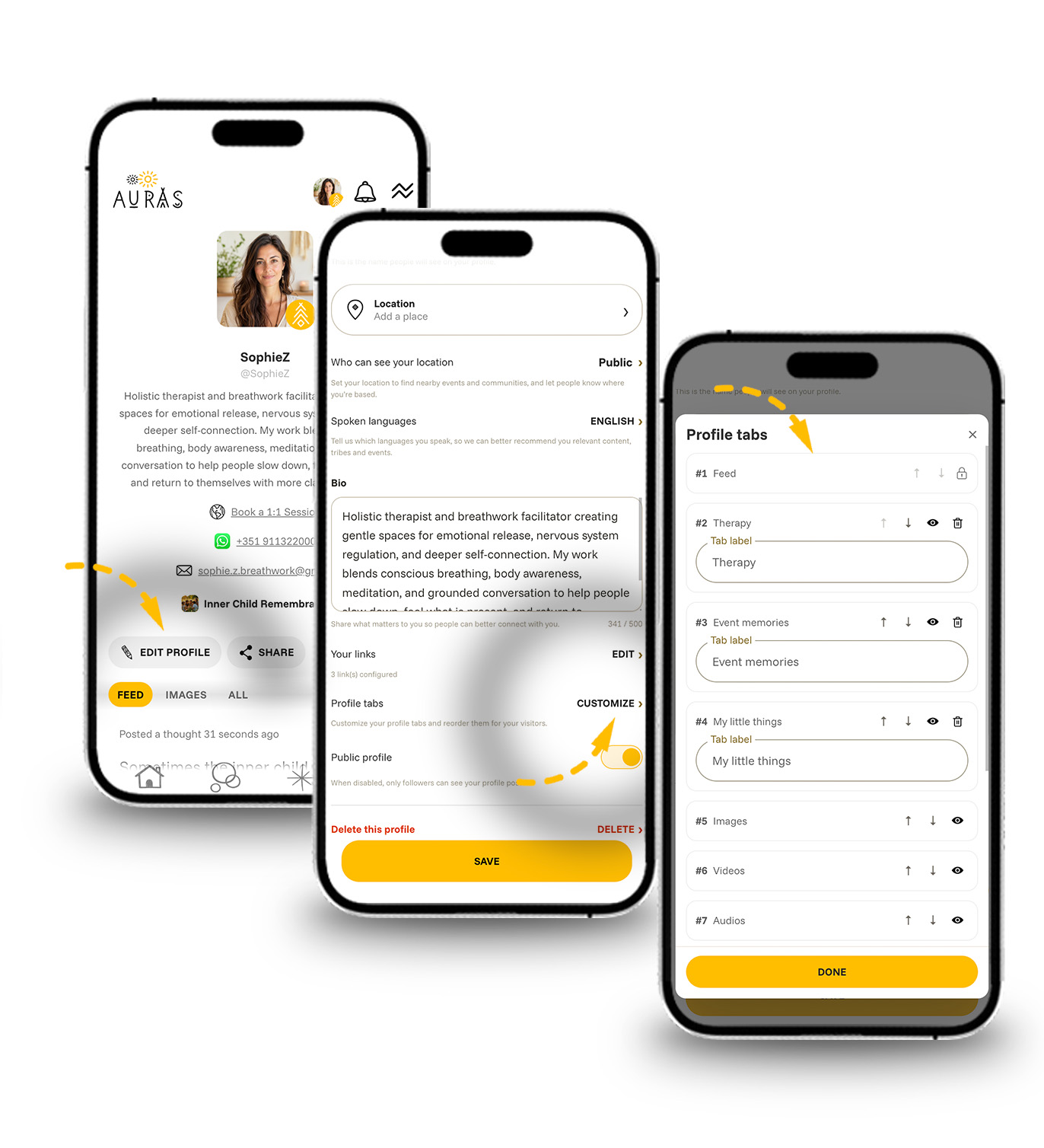
Tabs turn your profile into a simple portfolio or resource library. In Profile tabs, you can add custom tabs, rename them, change their order, and hide optional tabs.
- Feed is fixed first and All is fixed last.
- System tabs can group Images, Videos, Audios, Thoughts, Articles, and Events.
- Custom tabs can hold themes such as Sessions, Music, Resources, Testimonials, or Behind the scenes.
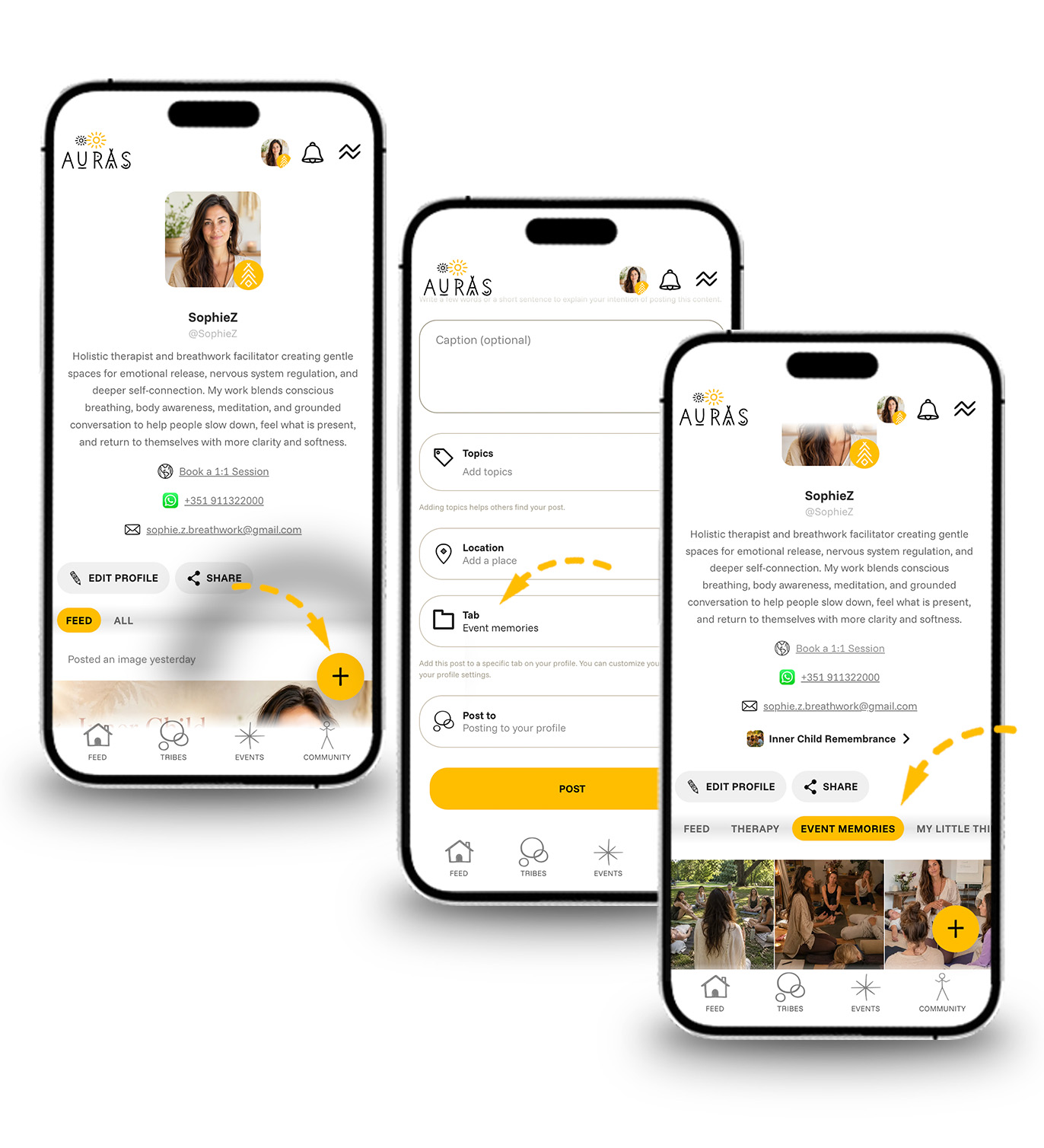
- Select the relevant tab when creating or editing a post.
Tabs organize your content for visitors. They do not change post privacy or publish a post to another profile, tribe, or event.
Publish content from your profile
Use the create button on your own profile to publish an image or carousel, video, audio post, text post, or thought. Choose a tab when it helps visitors find the post later.
Events connected to your professional work can also appear through profile event experiences and event-related tabs. When creating an event, link the correct organizer, facilitator, artist, or venue profiles so people can move between the event and everyone involved.
Connect with followers and collaborators
People can follow a public professional profile immediately. If profile posts are limited to followers, new requests need approval. Follow and personal-tribe invitations can be accepted, declined, or cancelled from the relevant profile.
Use your professional profile for your public work and switch to a personal profile when interacting as yourself. The active profile controls which identity creates a post, tribe, event, comment, or connection.
Keep the profile trustworthy
Review your bio, links, topics, public tribes, and upcoming work regularly. Remove old booking links, be specific about location and language, and avoid claims that could mislead people about qualifications, health outcomes, or results.
Delete the profile
If your account has another profile, you can delete the active professional profile from Edit profile after password confirmation. Its posts, comments, tribes, and events are deleted too, and the action cannot be undone. Deleting the whole account removes all profiles and their content.