
Create an event
A yoga class at sunrise, a seed swap, a weekend festival: every event on Auras starts as a quiet draft. You polish it in your own time and publish it when it feels ready.
Events live in a space
Every event belongs to one space. Whoever can see that space’s posts can see the event. No space yet? Create one first.
There are two ways to begin:
- Tap EVENTS at the bottom of the screen, then Create your event.
- Or open a space and tap New event. The space is then already chosen.
Fill in the basics
- Type the Event name and pick the space under Published in. Tap NEXT.
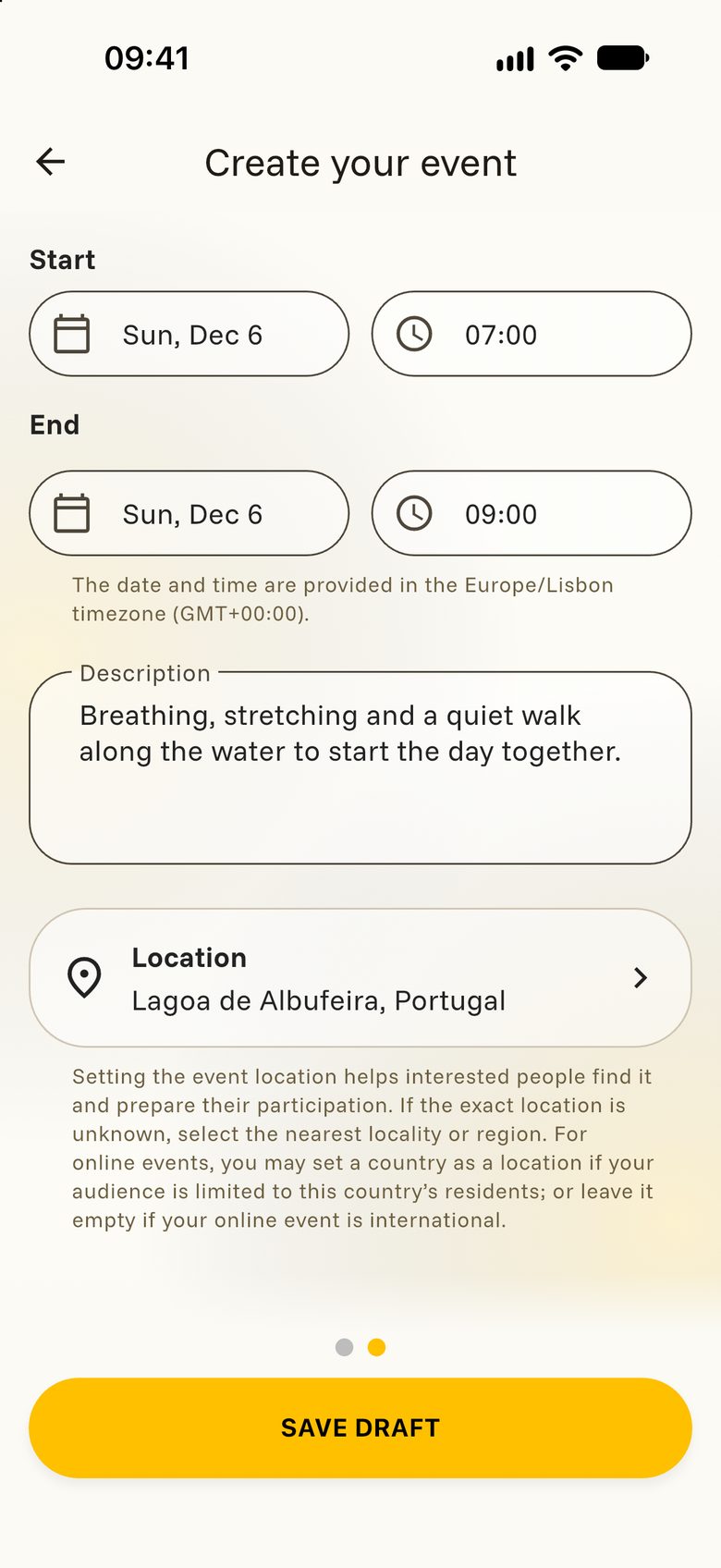
- Set the Start. The End fills in two hours later, and you can change it.
- Write a Description. What happens, what should people bring, who is it for?
- Add the Location, so people know where to meet.
- Tap SAVE DRAFT.
Three switches are there if you need them: This is a retreat, This is a festival and This is an online event. The last one adds a field for the link people will use to take part.
Your draft
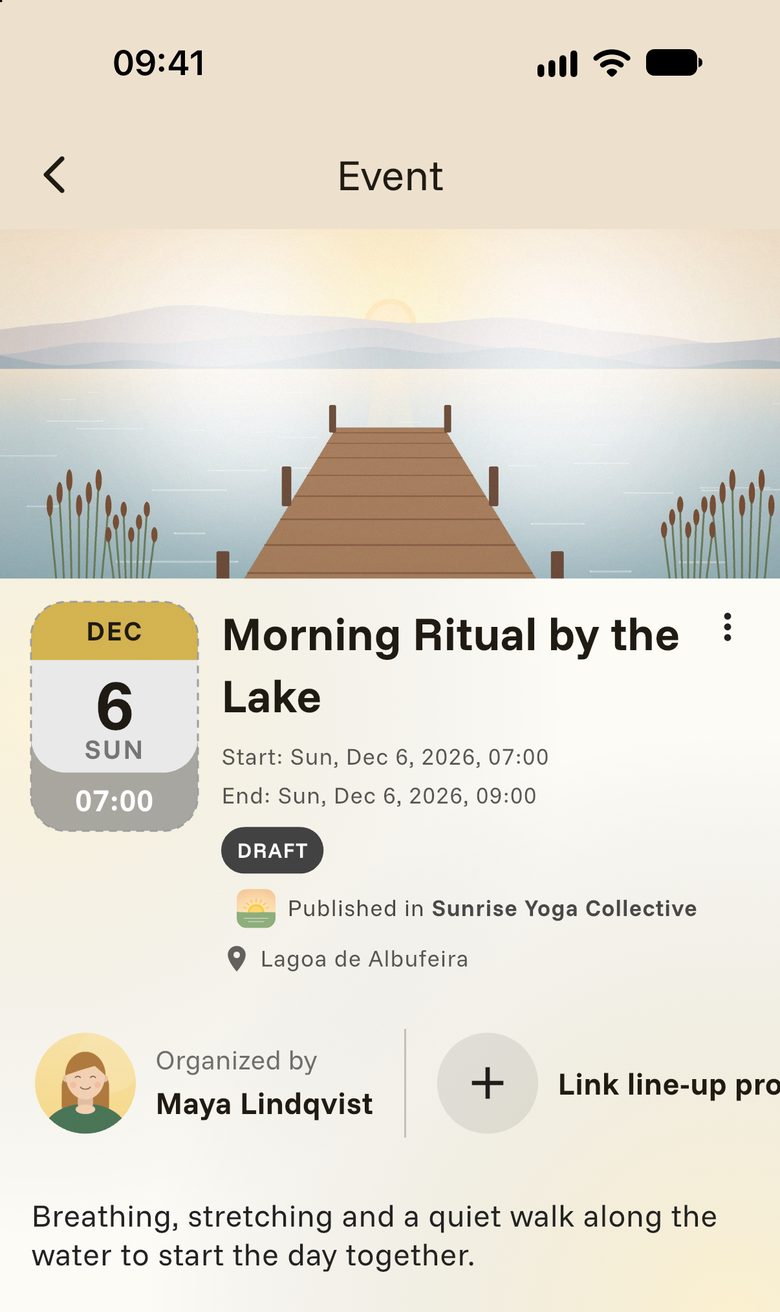
Your event page opens with a DRAFT badge. For now, only you and your crew can see it. This is the moment to make it inviting.
Add a cover
Tap the three dots and choose Edit event. Next to Event’s cover, tap EDIT COVER and choose a picture. Go back and tap SAVE CHANGES.
Show who is hosting
The line-up is public. It shows the teachers, musicians or the venue next to your own name.
- Tap Link line-up profiles or venue, then ADD PROFILE.
- Choose the person and the role they have.
- Tap LINK PROFILE.
Bring in helpers
Your Crew works behind the scenes and isn’t shown to guests. Crew members can see the draft and the guest list, and they can welcome guests at the door. Add them with EDIT CREW AND HELPERS.
Would you like people to sign up? That is set on the draft too. See RSVP, forms and ticket links.
Publish
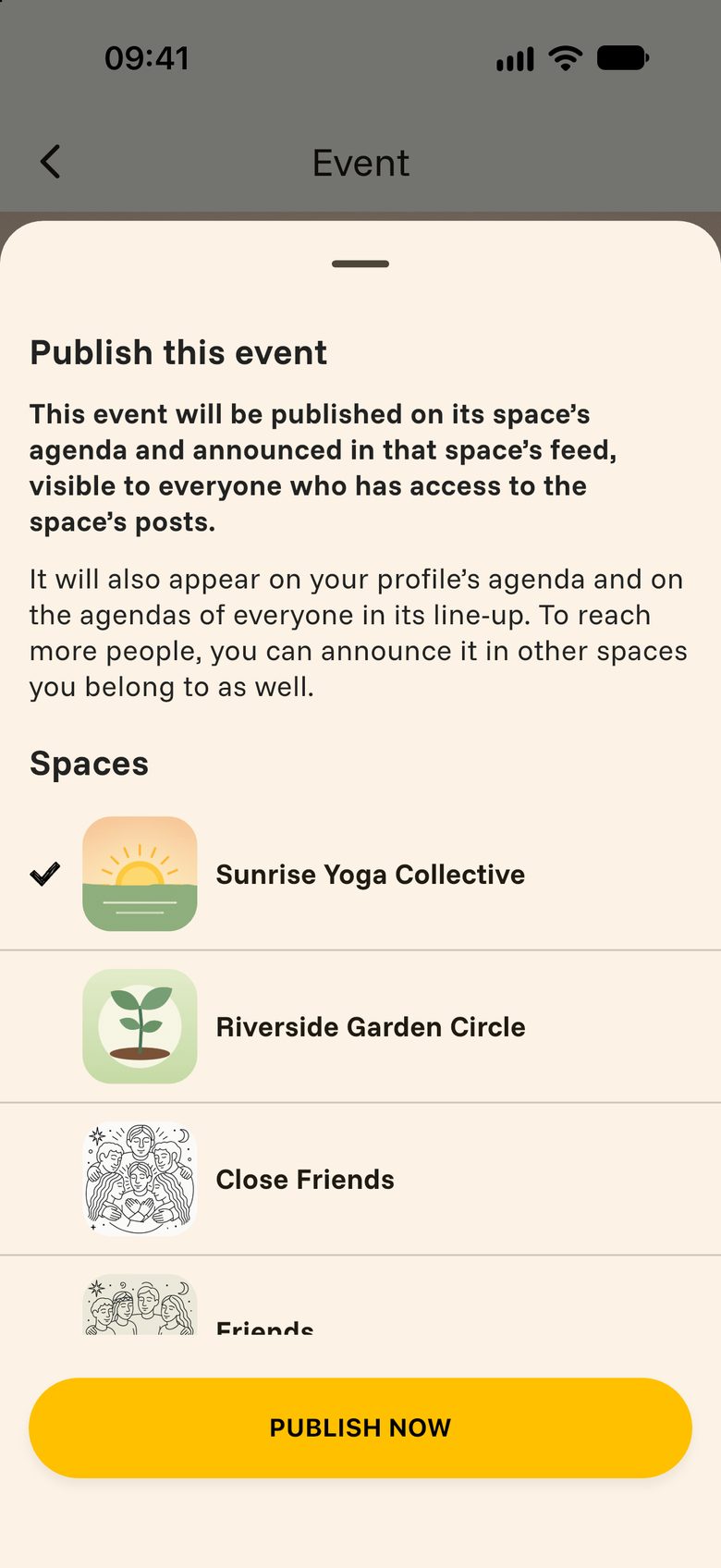
- Tap PUBLISH EVENT.
- The event’s own space is already ticked. Under Spaces you can tick more spaces to announce it there as well.
- Tap PUBLISH NOW.
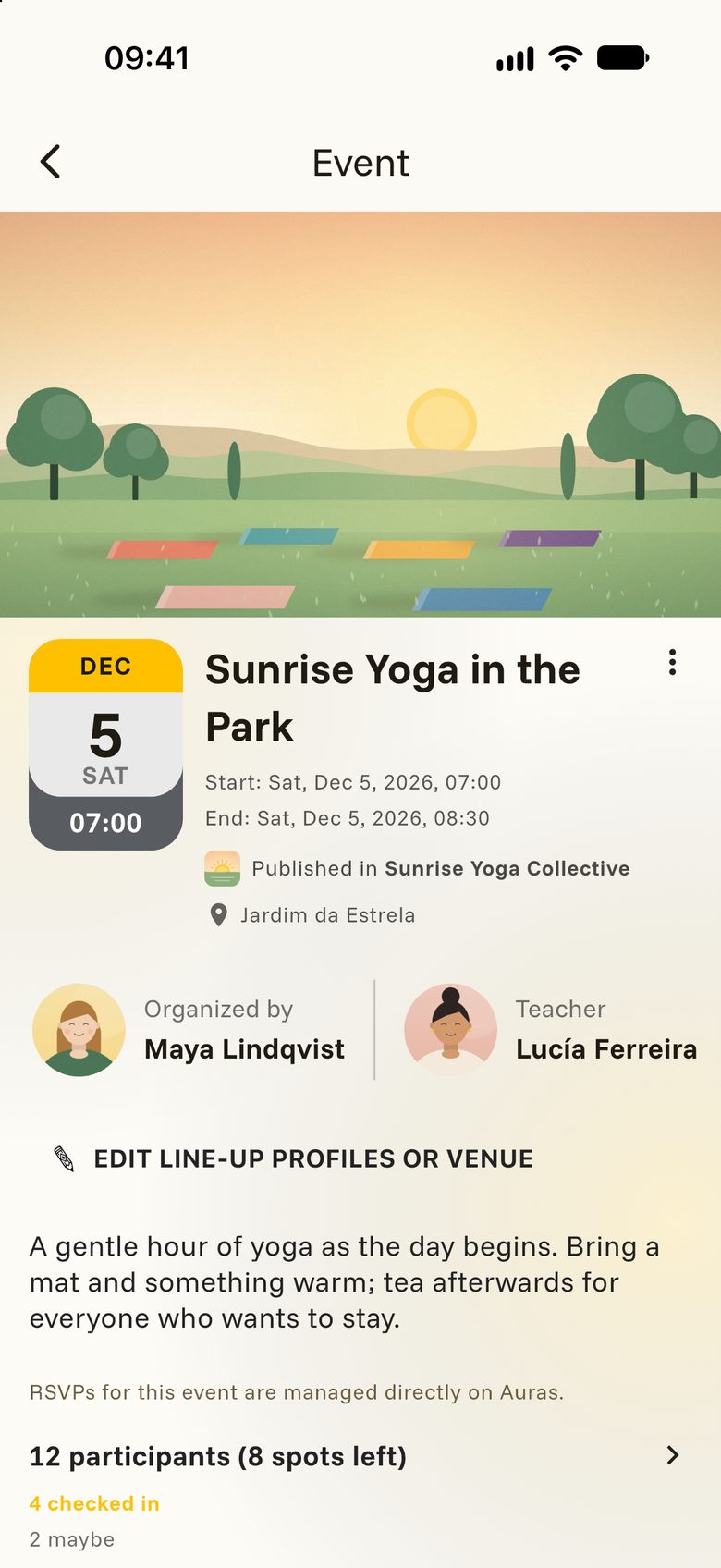
Your event now appears on the space’s Agenda and is announced in its feed. A published event can’t go back to being a draft, so publish when you are happy with it.
After publishing
The three dots on your event hold everything you need from here on:
- Edit event: change any detail. If you move the date or time, the people who signed up are told.
- Share event: send the event’s link through any app on your phone.
- Duplicate: start a new draft with the same details, cover, line-up and crew.
- Cancel event: the event stays visible with a CANCELLED badge, and the people who signed up are told.