
Shape your space
A space is never finished on day one. As a steward you can keep shaping it: how it looks, what its rules are, who can find and join it, and how its feed is organised.
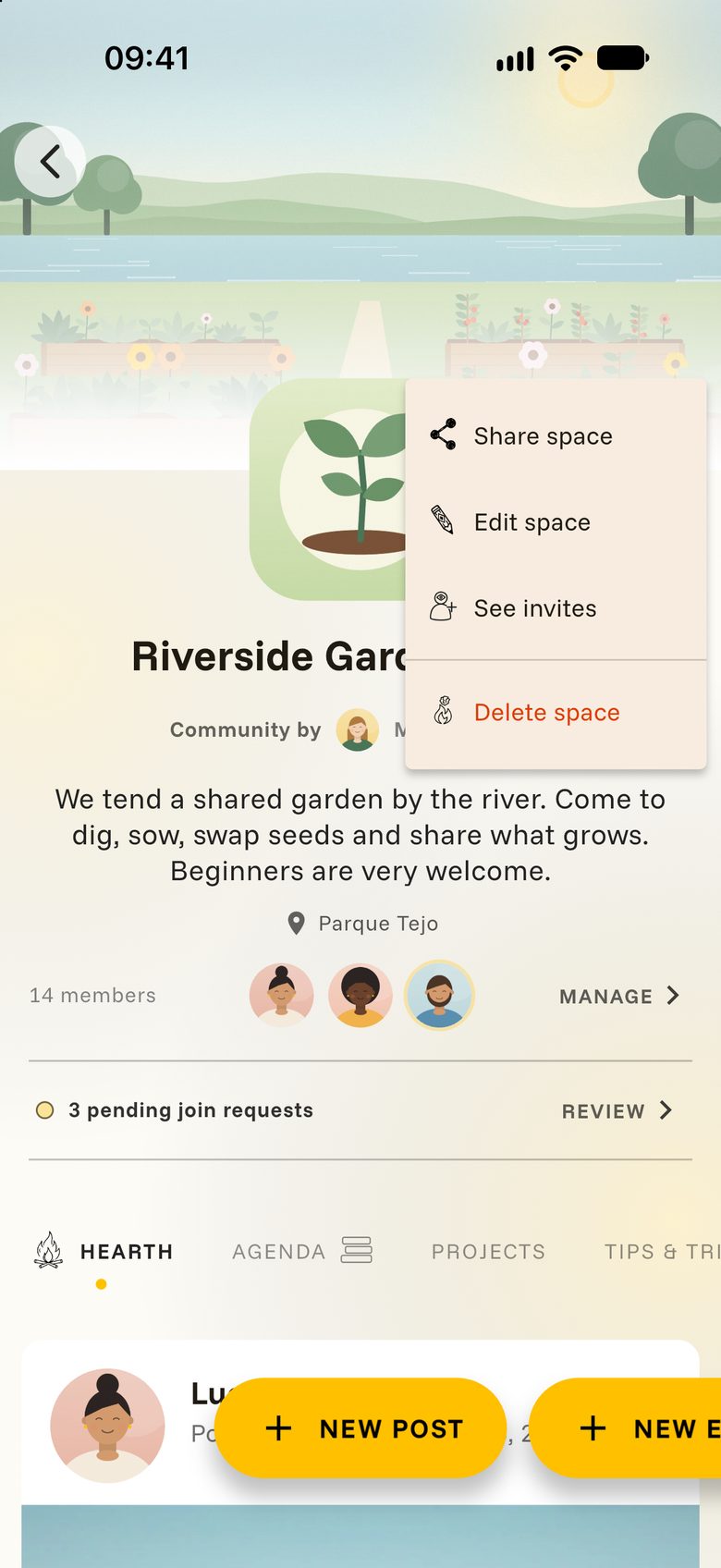
Open “Edit space”
Open your space, tap the three dots at the top right and choose Edit space. Only stewards see this entry.
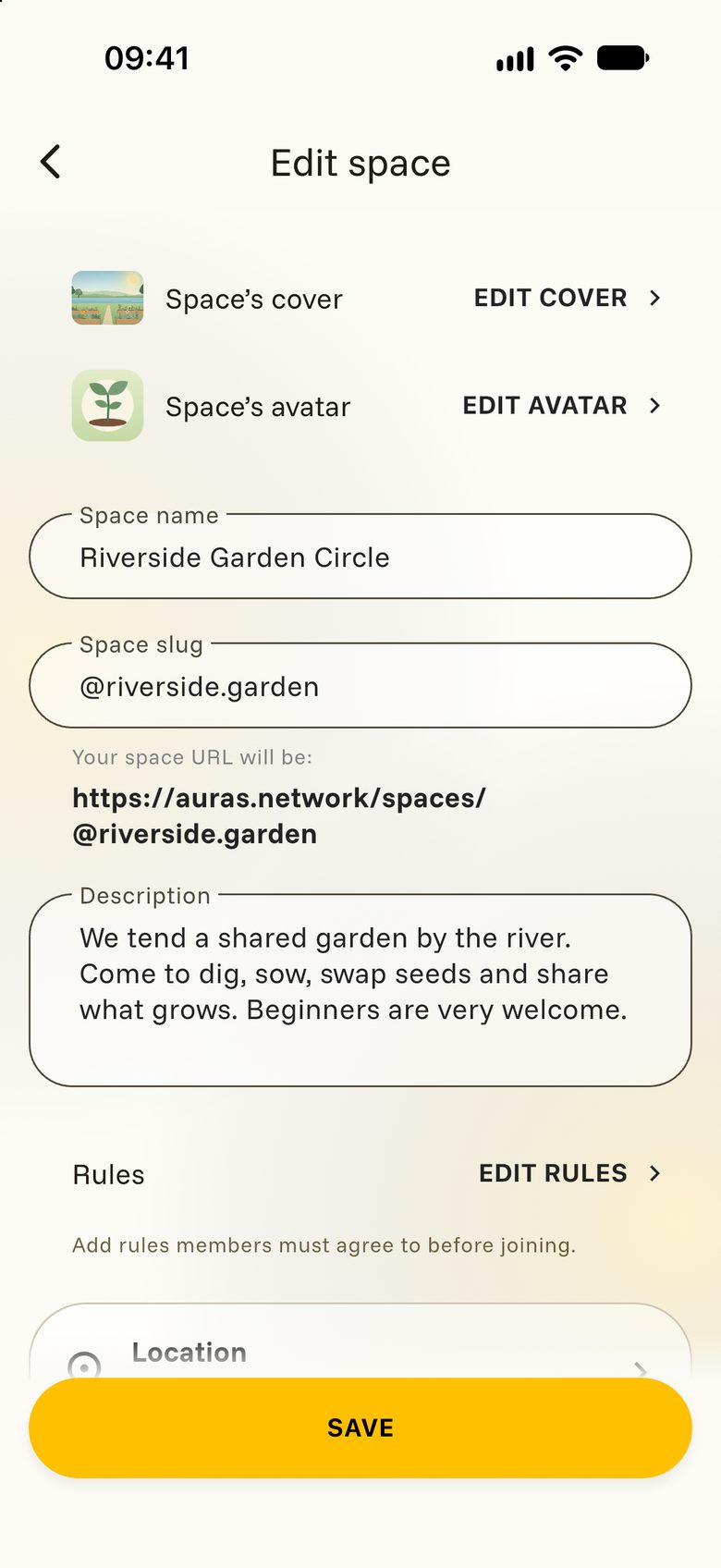
Everything is on one long page. When you are done, tap SAVE at the bottom.
Look and description
A good cover and a few clear sentences tell visitors at once whether they are in the right place.
- Space’s cover: the wide picture at the top. Tap EDIT COVER.
- Space’s avatar: the small picture that stands for your space everywhere. Tap EDIT AVATAR.
- Space name, Description, Location and Spoken languages.
- Space slug: the short @name in your space’s link. The full link is shown right below the field.
- Topics help people who share your interests find the space.
- Show space creator: shows your name on the space as its creator.
Rules
Rules set the tone. If you write some, new people read and agree to them when they tap JOIN.
Tap EDIT RULES and keep them short and friendly. A gardening circle might say:
- Be kind and patient with each other.
- Leave tools and beds tidier than you found them.
- Share the harvest fairly.
Privacy and posting
Here you find the same choices you made when you created the space: Who can find this space?, Who can join this space? and Who can see the posts?, plus the switches for posting and commenting. They are explained in Create a space.
Two things are worth knowing:
- Members only also keeps the space’s events to members.
- With Members can post switched off, only stewards post. That suits a space for announcements.
Feed tabs
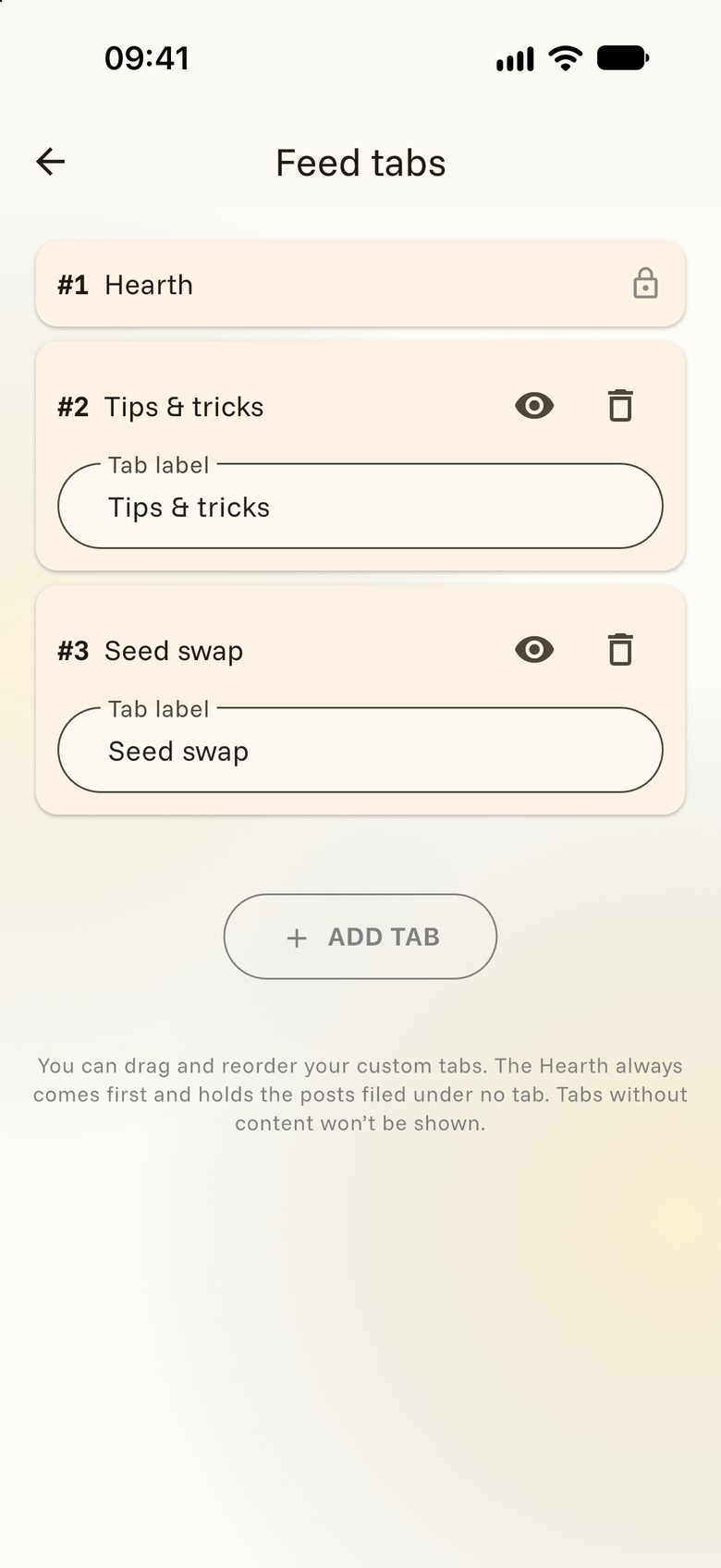
Every space starts with one tab, the Hearth, where all posts gather. Add your own tabs to sort them, such as “Tips & tricks” or “Seed swap”.
- In Edit space, scroll to Feed tabs and tap CUSTOMIZE TABS.
- Tap ADD TAB and give the tab a name.
- Go back and tap SAVE.
Members choose a tab when they post. If a post lands in the wrong one, a steward can move it. The Agenda tab with your space’s events appears by itself.
Share the space
Tap the three dots and choose Share space to send the link through any app on your phone. Anyone can share a space that everyone can find.
Delete the space
Only the person who created a space can delete it: three dots, Delete space, then DELETE. This can’t be undone, so take a breath first.